Skip to content
View in the app

A better way to browse. Learn more.

MSFN

A full-screen app on your home screen with push notifications, badges and more.

To install this app on iOS and iPadOS
  1. Tap the Share icon in Safari
  2. Scroll the menu and tap Add to Home Screen.
  3. Tap Add in the top-right corner.
To install this app on Android
  1. Tap the 3-dot menu (⋮) in the top-right corner of the browser.
  2. Tap Add to Home screen or Install app.
  3. Confirm by tapping Install.

GainL

Member
  • Joined

  • Last visited

  • Country

    United Kingdom
  1. GainL replied to GainL's topic in Introduce Yourself!
    im good, thanks for asking! you're right? thanks guys
  2. GainL posted a topic in Introduce Yourself!
    Hi evereyone!
  3. GainL replied to Gommo's topic in Introduce Yourself!
    grande maccio
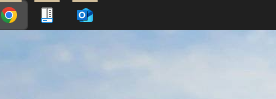
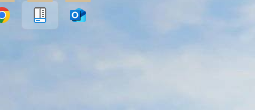
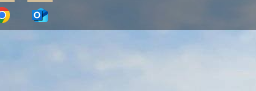
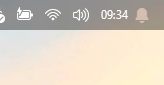
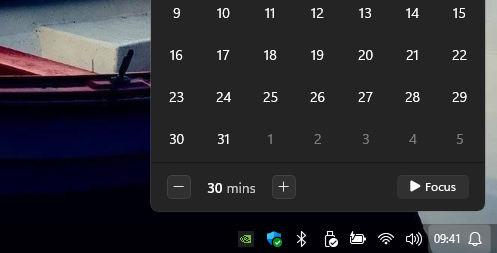
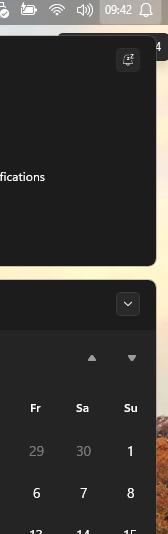
  4. Hi all, Recentely I have formatted my pc and when I reinstalled StartAllBack I have encoutered 2 issue(1 new and 1 old). 1. Transparency level: Basically before I use to have the transparency level like the pic '3' but now looks like blocked with 2 levels of transparency(pic '1' and '2'). 2. Navigation windows: the position of my taskbar is on TOP, when I click on the time for the calendar or the bell for the notification the most of the times the relative window doesnt open, sometimes I have the same issues with the audio one. If I really need I open the settings, set the taskbar on the bottom, open the things I need and put back on top and then it works from the top too...until I restart the PC. (u can see the behave from pic navwin1-2-3). any chance to fix those issues? thanks

Account

Navigation

Configure browser push notifications

Chrome (Android)
  1. Tap the lock icon next to the address bar.
  2. Tap Permissions → Notifications.
  3. Adjust your preference.
Chrome (Desktop)
  1. Click the padlock icon in the address bar.
  2. Select Site settings.
  3. Find Notifications and adjust your preference.