Skip to content
View in the app

A better way to browse. Learn more.

MSFN

A full-screen app on your home screen with push notifications, badges and more.

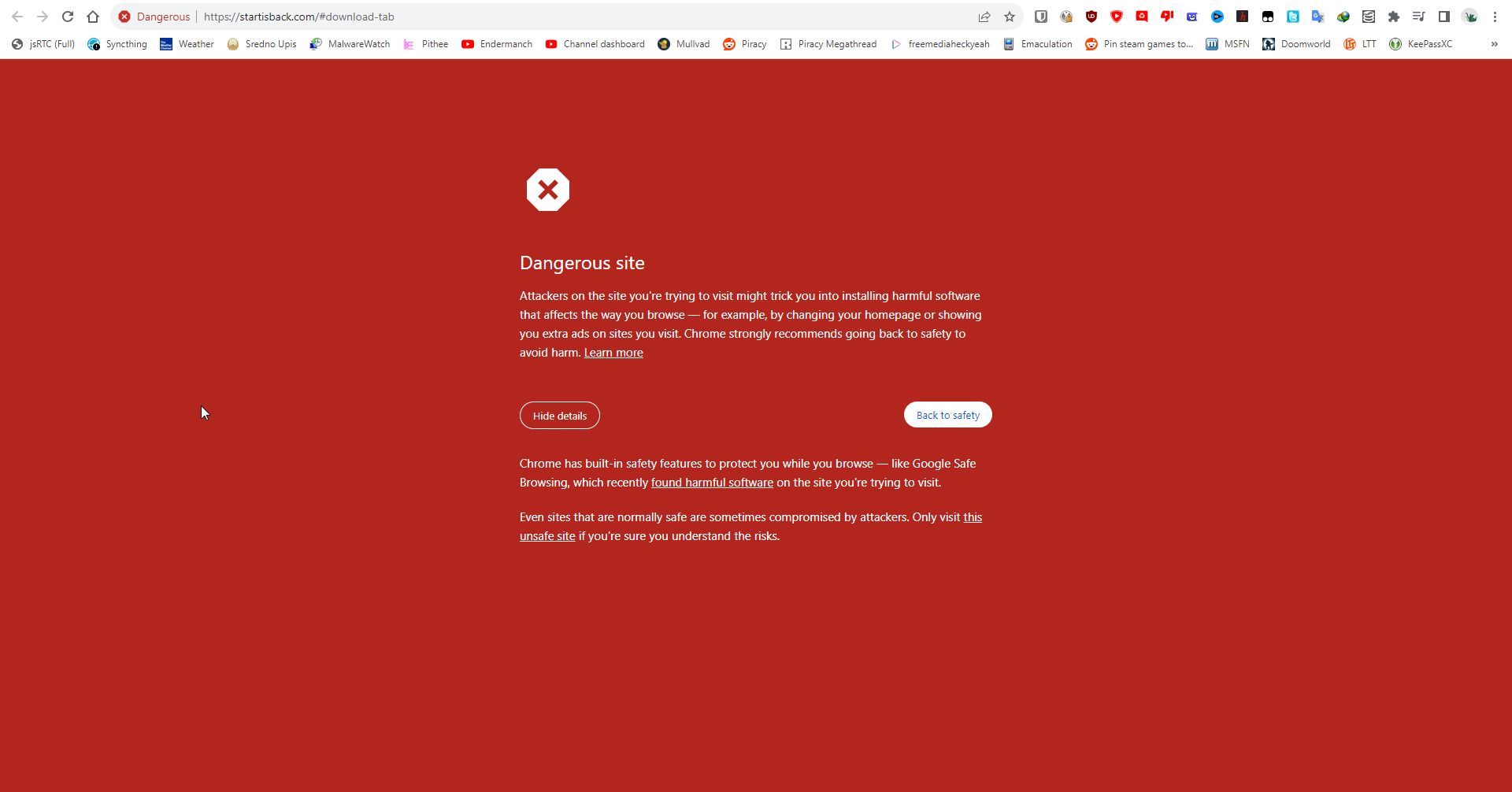
To install this app on iOS and iPadOS
  1. Tap the Share icon in Safari
  2. Scroll the menu and tap Add to Home Screen.
  3. Tap Add in the top-right corner.
To install this app on Android
  1. Tap the 3-dot menu (⋮) in the top-right corner of the browser.
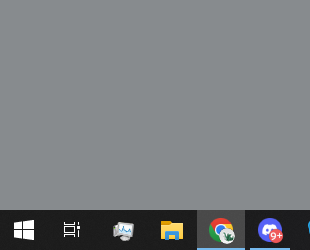
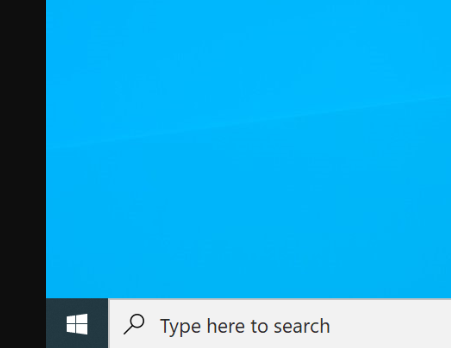
  2. Tap Add to Home screen or Install app.
  3. Confirm by tapping Install.

NotAViper

Member
  • Joined

  • Last visited

  • Country

    North Macedonia
  1. Can someone reset this or do I have to wait 30 days? I have been switching betwee my laptop and pc.
  2. This isn't about classic shell or whatever, it's for startisback/startallback.
  3. Which width and height is the file? I wanna make my version smaller it is too big.
  4. I don't like how it's blue, how can I change that?
  5. The SIB and SAB websites are no longer being detected as dangerous.
  6. Pretty good idea, SAB is pretty popular. Maybe some tech blogs can cover this.
  7. It's so annoying when google does this, another tech youtuber which I watch, his website was flagged as dangerous for no reason. It's stupid.
  8. I just tried to go to the website to reinstall the software and got this message on chrome, just reported it as a false positive which you can do right here: https://safebrowsing.google.com/safebrowsing/report_error/?hl=en
  9. NotAViper started following StartIsBack+
  10. I have used this forum some years ago but just today I decided to register. I like both new and old technology. I have started using technology when I was very young. Mainly I got even more interested in emulators and other older technology after watching videos from Druaga1 and OSFirstTimer.
  11. Pretty much the title, the start button icon looks bigger when the taskbar is set to m icons. I have two images attached one from startisback, the second from regular windows 10 Here is startisback: Here is regular windows 10:
Account

Navigation

Search

Search

Configure browser push notifications

Chrome (Android)
  1. Tap the lock icon next to the address bar.
  2. Tap Permissions → Notifications.
  3. Adjust your preference.
Chrome (Desktop)
  1. Click the padlock icon in the address bar.
  2. Select Site settings.
  3. Find Notifications and adjust your preference.