Skip to content
View in the app

A better way to browse. Learn more.

MSFN

A full-screen app on your home screen with push notifications, badges and more.

To install this app on iOS and iPadOS
  1. Tap the Share icon in Safari
  2. Scroll the menu and tap Add to Home Screen.
  3. Tap Add in the top-right corner.
To install this app on Android
  1. Tap the 3-dot menu (⋮) in the top-right corner of the browser.
  2. Tap Add to Home screen or Install app.
  3. Confirm by tapping Install.

TheRobster5555

Member
  • Joined

  • Last visited

  • Country

    United States
  1. I can confirm that the servers are back online, though I've installed an update rollup pack created by someone, and that seems to have gotten everything covered. The only thing that windows update found was the driver for the monitor. Thanks for all the help though!
  2. Is there any way to fix this for Vista? I only see ways to make it work on 7.
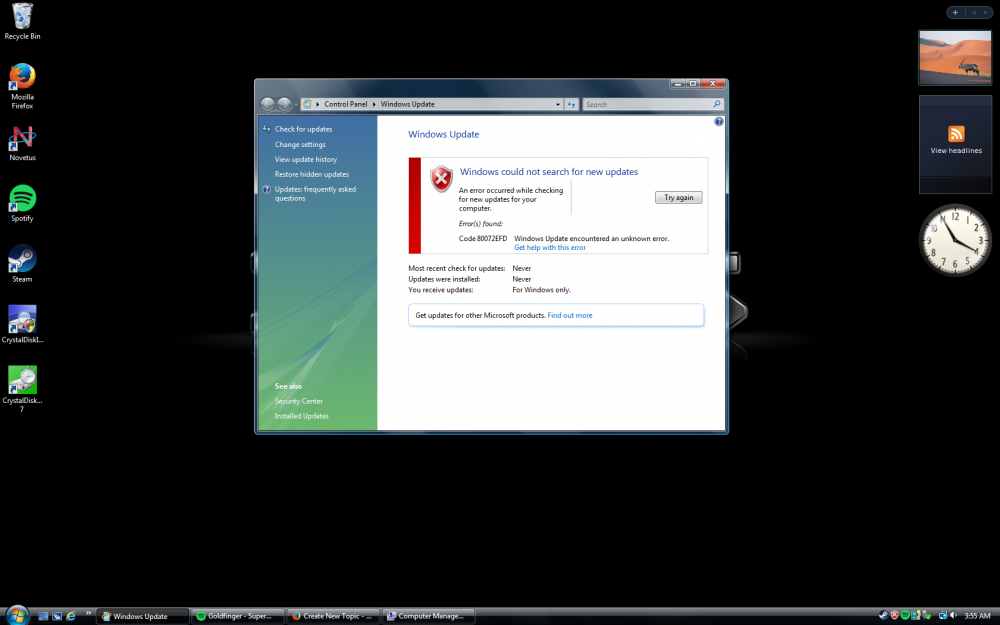
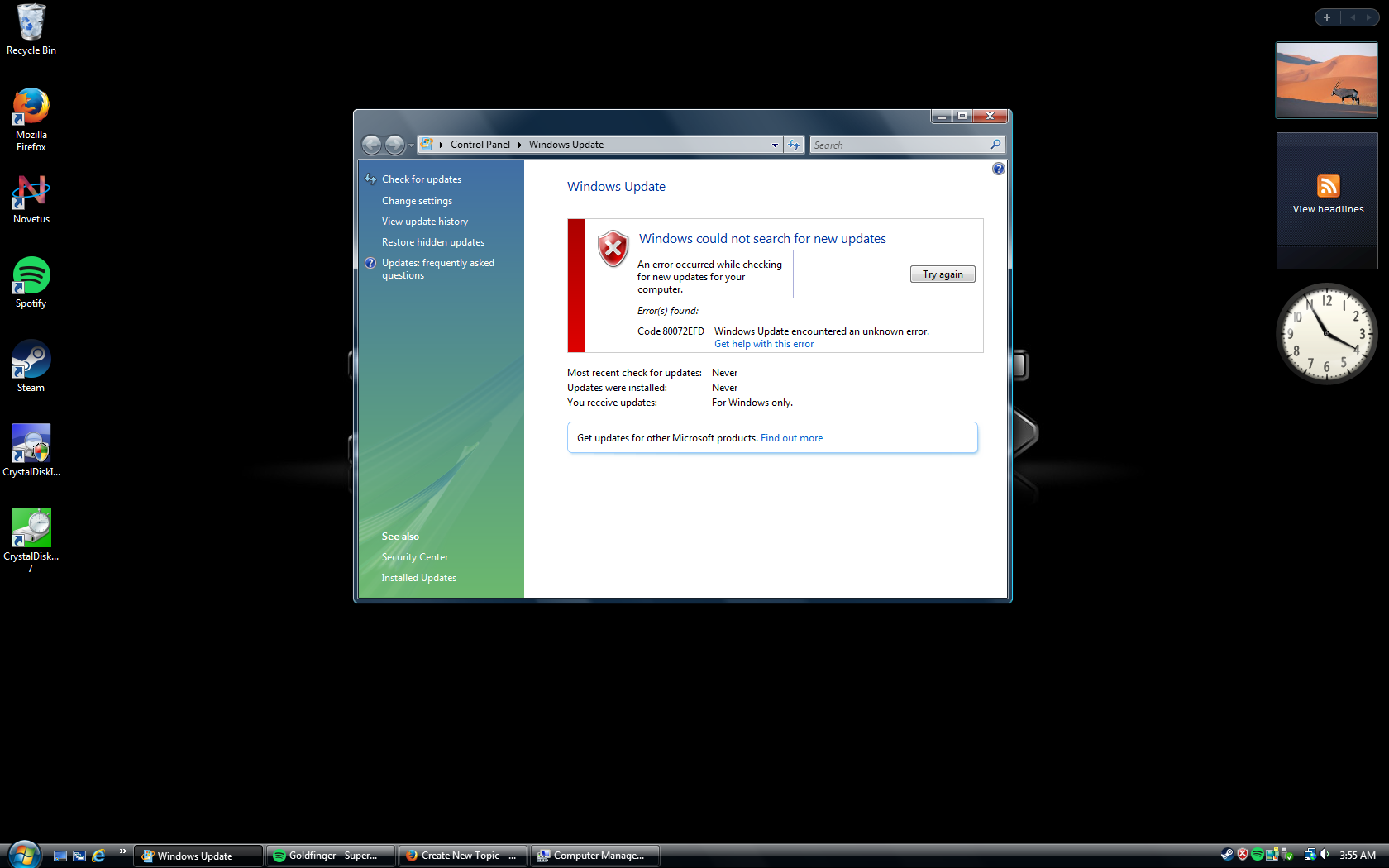
  3. Hi, I've just built kind of my dream 2008 PC and I've installed XP and Vista on it. I've gotten the XP side of things working fine, but I can't for the life of me get Windows Update to work on Vista. I've tried a few YouTube tutorials, but none seem to work, but feel free to post some of the easy answers in case I missed something. Here's the specs if it helps anyone Intel Core 2 Duo E6700 4GB DDR2 800 Nvidia GeForce 9800 GT Creative Sound Blaster X-Fi Intel 82566DC Gigabit Network Adapter EDIT: I tried updating my Ethernet driver off of the Microsoft Update website, and that didn't work, though the driver I downloaded was from 2011, but it seems that Intel isn't carrying any Vista drivers for any of their Ethernet products anymore. If anyone has an archive of an updated driver, that would be great. EDIT 2: archive.org is a great website. Using some link copying I found a link for the Vista driver for this Ethernet controller, and while updating the driver still didn't fix the issue, I'll still post the link for archival purposes. https://web.archive.org/web/20181130184021/downloadmirror.intel.com/18718/eng/PROWinx64.exe


Account

Navigation

Configure browser push notifications

Chrome (Android)
  1. Tap the lock icon next to the address bar.
  2. Tap Permissions → Notifications.
  3. Adjust your preference.
Chrome (Desktop)
  1. Click the padlock icon in the address bar.
  2. Select Site settings.
  3. Find Notifications and adjust your preference.