Skip to content
View in the app

A better way to browse. Learn more.

MSFN

A full-screen app on your home screen with push notifications, badges and more.

To install this app on iOS and iPadOS
  1. Tap the Share icon in Safari
  2. Scroll the menu and tap Add to Home Screen.
  3. Tap Add in the top-right corner.
To install this app on Android
  1. Tap the 3-dot menu (⋮) in the top-right corner of the browser.
  2. Tap Add to Home screen or Install app.
  3. Confirm by tapping Install.

jaaqueiroz

Member
  • Joined

  • Last visited

  • Country

    Brazil
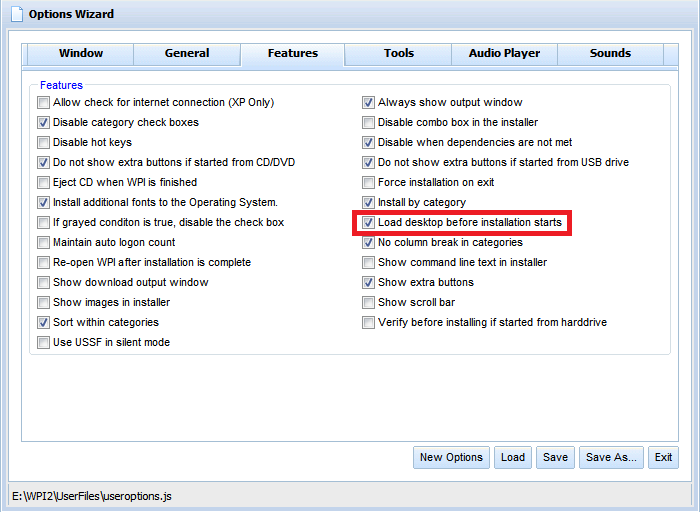
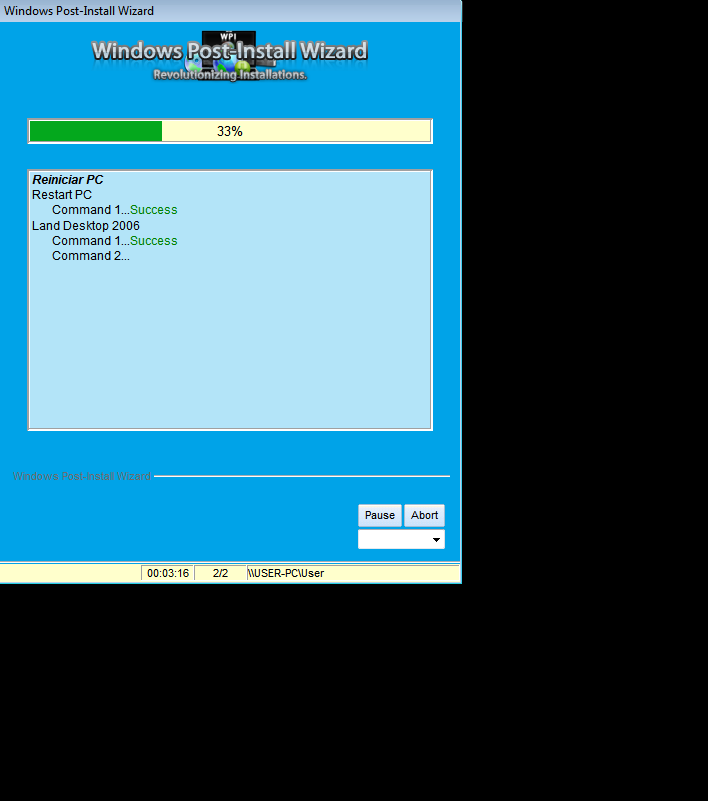
  1. Hello, I would first like to thank you all for the program, it helps me a lot In this new version 8.7.2 the option of desktop load before installations starts soon after a system reboot does not work , there are some programs that I need to interact with desktop loaded using mouse and keyboard commands saved in AutoIT script files. In older versions worked well, but in this new version when the computer starts the system stop with a black screen and does not leave it , can anyone help me? Cheers from Brazil
Account

Navigation

Search

Search

Configure browser push notifications

Chrome (Android)
  1. Tap the lock icon next to the address bar.
  2. Tap Permissions → Notifications.
  3. Adjust your preference.
Chrome (Desktop)
  1. Click the padlock icon in the address bar.
  2. Select Site settings.
  3. Find Notifications and adjust your preference.