Skip to content
View in the app

A better way to browse. Learn more.

MSFN

A full-screen app on your home screen with push notifications, badges and more.

To install this app on iOS and iPadOS
  1. Tap the Share icon in Safari
  2. Scroll the menu and tap Add to Home Screen.
  3. Tap Add in the top-right corner.
To install this app on Android
  1. Tap the 3-dot menu (⋮) in the top-right corner of the browser.
  2. Tap Add to Home screen or Install app.
  3. Confirm by tapping Install.

samrocks

Member
  • Joined

  • Last visited

  • Country

    India
  1. thanxxx for ur help bro...thanx a ton
  2. Thanks for your help bro................but can u tell me how to put a background image in Boot menu for usb........for e.g. how do i put an background image for my usb which i have mentioned above
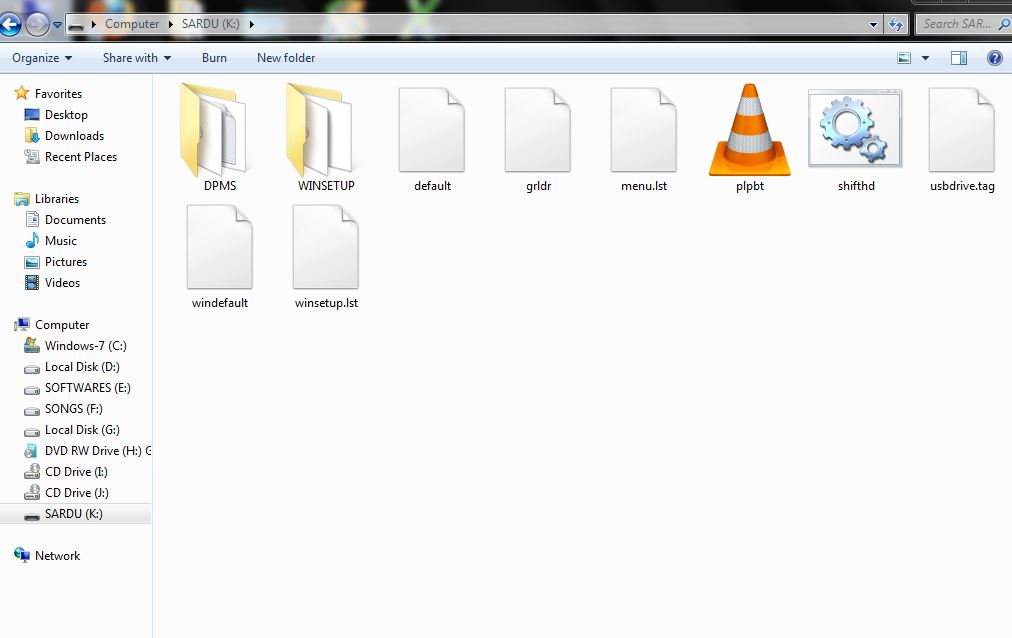
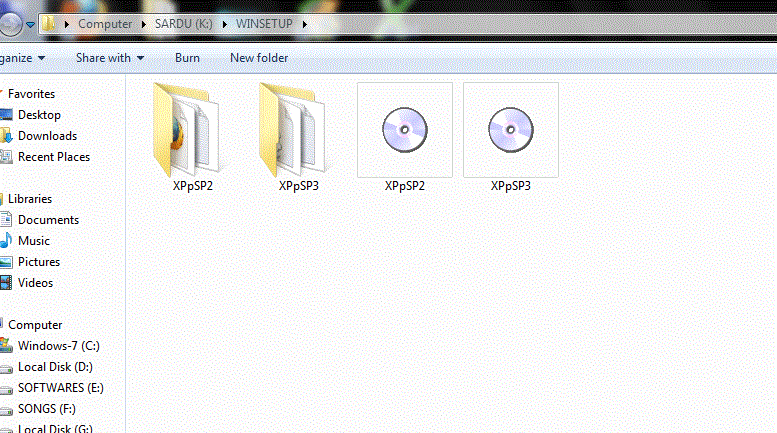
  3. Hey guys i have a 16gb kingston data traveller pen drive and i made it multibootable using Winsetup uSb 1.0Beta 8 version which contains Windows Xp Sp2 and Windows Xp Sp3.................But i don't like the default boot menu and i want to edit that....but i don't know how to edit that boot menu i want that my boot menu Should look something like this 1)Windows Xp Professional Sp2 Setup(if we hit enter key then nxt scrreen would come saying First part of Windows Xp professional sp3 Setup and Second part...) 2)Windows Xp Professional Sp3 Setup((if we hit enter key then nxt scrreen would come saying First part of Windows Xp professional sp3 Setup and Second part...) i m attaching my files here so if u can edit them for me..........i vl be very greatfull to that person............plzzz help me Here is the screenshot of the stuff in my pen drive Screenshot of files under Winsetup folder - Here are my files -Files to edit.rar

  4. I also want to make a multibootable USB flash drive which contains Windows XP sp1 and Windows Xp sp2.....................plzzz give me some suggestions

Account

Navigation

Configure browser push notifications

Chrome (Android)
  1. Tap the lock icon next to the address bar.
  2. Tap Permissions → Notifications.
  3. Adjust your preference.
Chrome (Desktop)
  1. Click the padlock icon in the address bar.
  2. Select Site settings.
  3. Find Notifications and adjust your preference.