Everything posted by modro
-
I dont have the file setup.exe the picture shows the root of my cd http://hacked.free-bsd.org/upload/image.php?bild=810
-
Im trying to add office 2003 to my unattended xp disc but i cant find setup.exe in my office 2003 disc how iam i solving the problem?
-
Can i use my Windows xp sp2 disc ? instead of xp sp1 ? any changes ?
-
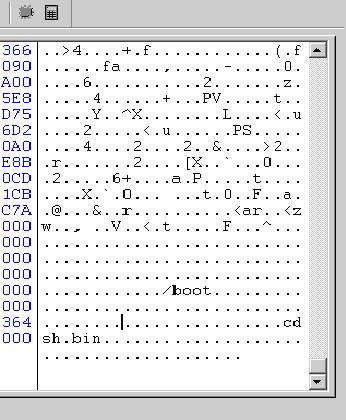
Now i have extracted the boot sector to a file the orginal file name was .bif i renamed it to UBCD.DAT Where should i put the file ? What changes would i have to make with that file? Next step i have also problems on. i have downloaded the file UBCD.ZIP and extracted it now im sitting with the hex editor and i cant find the line /CDSH the only line in the file with / is /boot Please help me.
-
i have extracted the zip file and opened it with hex editor but i cant find the line /CDSH. I have opened the iso in isobuster but what files are im going to extract please say with filenames? Some screenshots would be nice too
-
I have come to this part "Now open up ISOBuster and Extract the bootsector of the UBCD.ISO and save it as UBCD.DAT" I dont now what files in the iso to extract and where should i put the files im going to extract? Problem 2 I have downloaded the UBCD.zip and opened it with the hex editor but i cant find where the line /CDSH is that im going to replace. Question Can i use my Windows xp sp2 disc instead?