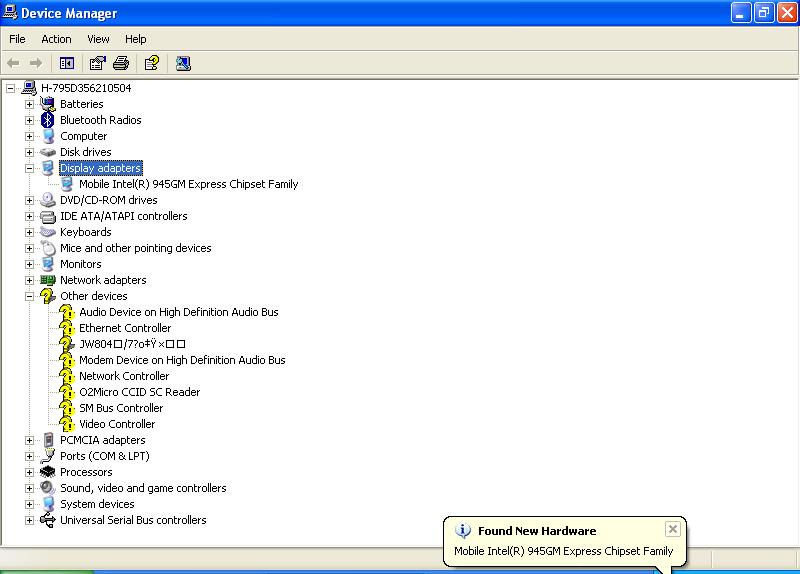
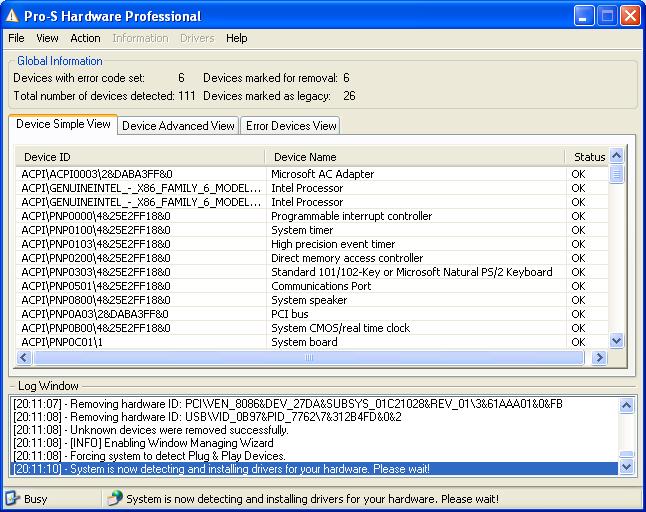
Hi all, I'm trying to get this tool working on my laptop, which is a dell latitude d620. If everything is working ok i'm planning to use this tool to install drivers when deploying images. For my test machine, i've downloaded every driver from the dell site and unpacked the exe's. After that i changed some settings in hardware_config.xml like the driver path. Now i've started pro hardware installer. The first driver it installed was the VGA driver, but after that the tool was just sitting there and doing nothing... After 10 minutes of waiting i stopped the program. I have included my xml file and a screenshot. What am i doing wrong? Thanks :-) <?xml version="1.0" encoding="utf-8"?> <settings> <basic_configuration> <choice>Automatic</choice> <window_managing> <hardware_wizard> <wizard_use>Yes</wizard_use> <wizard_title>Found New Hardware Wizard</wizard_title> <wizard_button_cancel>Cancel</wizard_button_cancel> <wizard_button_next>Next</wizard_button_next> <wizard_button_finish>Finish</wizard_button_finish> </hardware_wizard> </window_managing> <share_configuration> <use_mapping>No</use_mapping> <map_network_drive> <drive_1> <share_path>\\127.0.0.1\c$</share_path> <domain_username>EM\MadBoy</domain_username> <domain_password>SuperPass</domain_password> </drive_1> </map_network_drive> </share_configuration> <drivers> <drivers_method>New</drivers_method> <drivers_database_use>No</drivers_database_use> <drivers_database_recreate>No</drivers_database_recreate> <drivers_database_path>D:\Drivers\hardware_database.db</drivers_database_path> <drivers_directory_path>D:\Drivers</drivers_directory_path> <drivers_packed>No</drivers_packed> <drivers_copy>No</drivers_copy> <drivers_copy_path>C:\Drivers</drivers_copy_path> <drivers_copy_delete>No</drivers_copy_delete> <options> <method>RegistryDevicePath</method> <registry_path>Begin</registry_path> <problem_ids>01,10,18,24,28,37,39</problem_ids> <update_all>Yes</update_all> <plug_and_play> <option>Internal</option> <time_to_wait>5</time_to_wait> </plug_and_play> <shutdown> <auto_reboot_when_necessary>No</auto_reboot_when_necessary> <auto_reboot_when_done>No</auto_reboot_when_done> <auto_login>Yes</auto_login> <notify_when_done>Yes</notify_when_done> </shutdown> <time_to_run>0</time_to_run> <force_run>Yes</force_run> <device_manager>Yes</device_manager> </options> </drivers> <log> <log_overwrite>Yes</log_overwrite> <log_to_file>Yes</log_to_file> <log_filename_path>$ProgramDir\hardware.log</log_filename_path> <log_option>Simple</log_option> </log> <gui> <hide_legacy_devices>No</hide_legacy_devices> <fade_in_effect>No</fade_in_effect> <hide_views>No</hide_views> </gui> </basic_configuration> </settings> hardware.txt