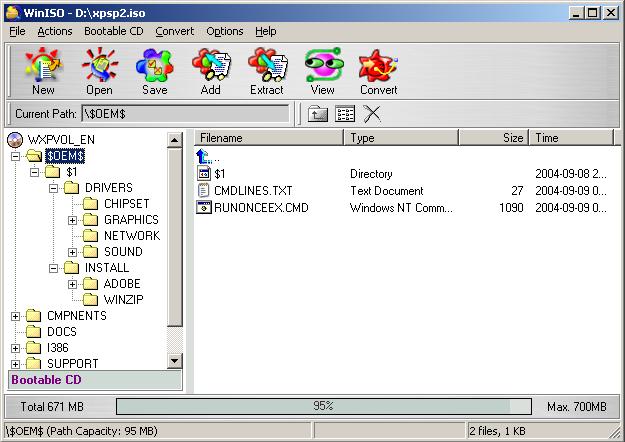
I have followed the instructions and created the folder structure, cmd files and placed them in the correct spot as specified on the website. Please refer attached image. The unattended install runs fine it adds the RunOnce registry entries executes them but cannot find the folders as they have not been copied to the system drive. Copying the folders manually and running RunOnceEx.cmd and then rebooting does the job (surely thats not unattended). Any suggestions appreciated Folder Structure \$OEM$\$1\Drivers\chipset, network, sound, graphics \$OEM$\$1\Install\Adobe, Winzip \I386\ \Support etc Cmdlines.txt, RunOnceEx.cmd \$OEM$\cmdlines.txt, RunOnceEx.cmd contains [Commands] "RunOnceEx.cmd" RunOnceEx.cmd contains @Echo Off SET KEY=HKLM\SOFTWARE\Microsoft\Windows\CurrentVersion\RunOnceEx REG ADD %KEY% /V TITLE /D "Intel Motherboard D865GLC Drivers and Software" /f REG ADD %KEY%\000 /VE /D "Intel Chipset" /f REG ADD %KEY%\000 /V 1 /D "%SystemDrive%\Drivers\chipset\infinst_enu.exe -a -s" /f REG ADD %KEY%\001 /VE /D "Intel Pro Network" /f REG ADD %KEY%\001 /V 1 /D "%SystemDrive%\Drivers\network\PROSet.msi /qn /norestart" /f REG ADD %KEY%\002 /VE /D "Intel Graphic Drivers" /f REG ADD %KEY%\002 /V 1 /D "%SystemDrive%\Drivers\graphics\Setup.exe -s" /f REG ADD %KEY%\003 /VE /D "SoundMax Cadenza" /f REG ADD %KEY%\003 /V 1 /D "%SystemDrive%\Drivers\sound\Setup.exe -s" /f REG ADD %KEY%\004 /VE /D "WinZip 8.0" /f REG ADD %KEY%\004 /V 1 /D "%SystemDrive%\Install\winzip\winzip80.exe /autoinstall" /f REG ADD %KEY%\005 /VE /D "Acrobat Reader 6.0" /f REG ADD %KEY%\005 /V 1 /D "%SystemDrive%\Install\Adobe\ENUBIG\AR6.msi /qn /norestart" /f REG ADD %KEY%\006 /VE /D "Cleaning Up and Rebooting" /f REG ADD %KEY%\006 /V 1 /D "%SystemDrive%\Install\Cleanup.cmd" /f EXIT Cleanup.cmd contains echo 130.194.97.117 zenwsimport >> %windir%\system32\drivers\etc\hosts shutdown.exe -r -f -t 60 -c "Windows XP will now restart in 1 minute..." RD /S /Q %systemdrive%\drivers\ RD /S /Q %systemdrive%\install\ EXIT