Everything posted by Mina
-
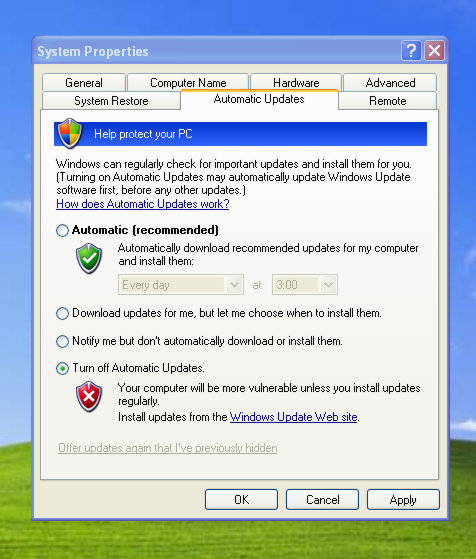
Yes I have run nLite more than once against the same source. Oeminfo and oemlogo copy works perfectly Picture what is attached is with "Default" settings: When selected "Download and install" then it is selected "Automatic" in Windows. Selection "Download and install" works for me, but of cource it is interesting to know why "Default" don't work.
-
-
There is no such option like "Enabled". But if selected "Download and install" and when "Scheduled day" set to "Every day" and "Scheduled time" set to 3 then it is same that Windows default (I need it to be exactly like Default). I did not know that it is the same that Windows Automatic option. Thank you for your advice it was usefull.
-
Hello again! I there a way to skip Windows XP installation to ask product key? It is possible to continue install without inserting product key but I wish to make such CD that dont ask it during installation.
-
Hello! I have recently made an unattended windows XP CD using nLite but after installing Windows Automatic Updates are turned off even though I selected Default in nLite. How to fix this? I attached my last session.ini Last Session.ini