



Skip to content
View in the app

A better way to browse. Learn more.

MSFN

A full-screen app on your home screen with push notifications, badges and more.

To install this app on iOS and iPadOS
  1. Tap the Share icon in Safari
  2. Scroll the menu and tap Add to Home Screen.
  3. Tap Add in the top-right corner.
To install this app on Android
  1. Tap the 3-dot menu (⋮) in the top-right corner of the browser.
  2. Tap Add to Home screen or Install app.
  3. Confirm by tapping Install.

JohnM

Member
  • Joined

  • Last visited

  • Country

    United States

Everything posted by JohnM

  1. How do I change whats in the picture? John
  2. How do I change the User account position at the top of the start menu? John
  3. Does anyone know of a listing of all the icons in imageres.dll and shell32.dll? John
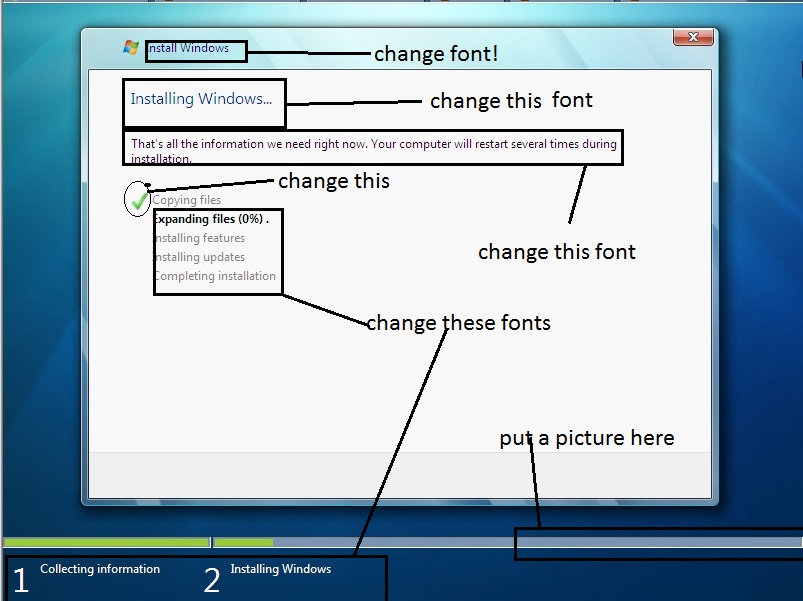
  4. Thank you Jean, Could you please help me with another something: Is there a way to customize the fonts in : Installing Windows, That's all...., and the menu items. Thank you very much! I have searched for this and I can not find it! Thank you all you wonderful people John
Account

Navigation

Configure browser push notifications

Chrome (Android)
  1. Tap the lock icon next to the address bar.
  2. Tap Permissions → Notifications.
  3. Adjust your preference.
Chrome (Desktop)
  1. Click the padlock icon in the address bar.
  2. Select Site settings.
  3. Find Notifications and adjust your preference.