-
No, WPI doesn't run at all - it gives an error posted in the beginning. I've tried to run WPI on the other laptop with identical OS Vista. And it ran without a problem. Could that be that some of the programs, installed on my pc are causing the problem? Is it possible to identify which?
-
Sorry for stupid question, but where can I find that Log file, which you want me to post?
-
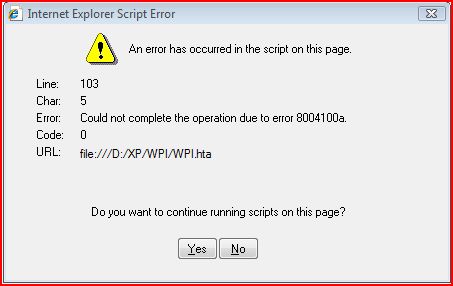
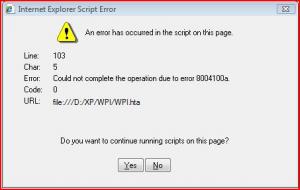
In the begining I had Nero8 installed, but when I read few posts that Nero was causing problems, I've uninstalled it. I'm using Mozilla most of the time, but it's not set to default. I just did it and then I've received such an error (look at the atached). But when I pressed "Yes" - it gave me same error as in the begining. Then I tried to set Internet Explorer as my default browser and I've experienced the same error as the 1st one. I just checked my version of Internet Explorer and it's 7.
-
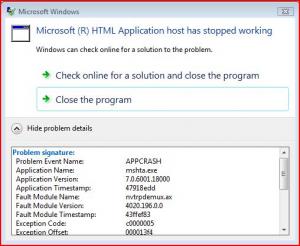
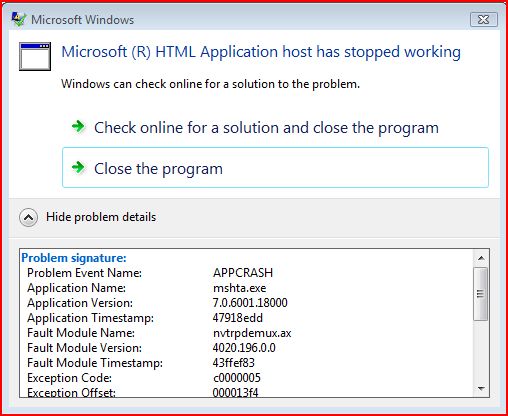
Hello, everybody! I am running Windows Vista Home Premium 32bit and want to use WPI. I have read everything on http://www.wpiw.net and many posts on this forum, but i can't find the solution. I have copied my Windows XP Pro to D:\XP and then extracted WPI 7.3 to that directory. After that I extracted $OEM$ also to the same directory. Then I put my acrobatreader9.exe to D:\XP\WPI\Install and then tried to run WPI.hta, but every time I'm receiving such and error: Microsof HTML Application host has stopped working . How can I solve this problem? Thanks in advance, Edwin