-
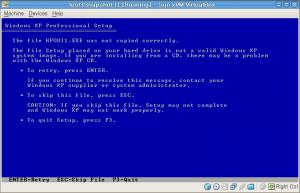
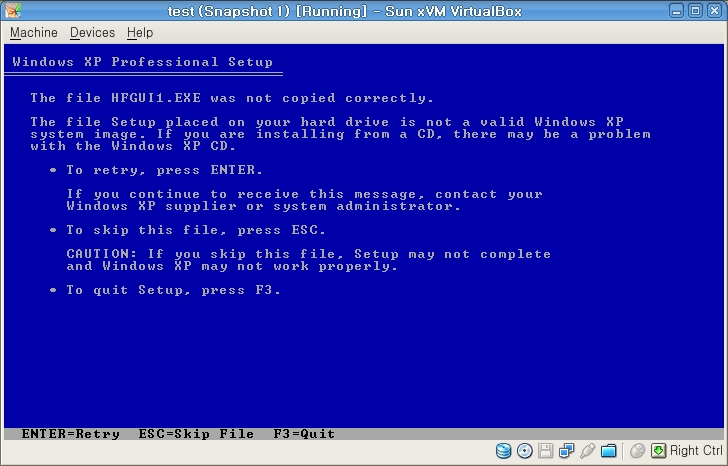
Before I got to know this wonderful script, I was the nLite users. Although nLite is also nice, it has some problems, mainly, not working with .Net Framework integration. I needed to spend some time to get to know how to use HFSLIP, but now it makes me save more time than nLite does. Just as indicated in the manual, I followed every step and could get the final ISO image. It looked so nice first. However, I faced the "one" error. Still, I did not got further step so that I know just one problem by now. Before installing this integrated Windows XP on my desktop directly, I tested it under my VirtualBox machine 2.0.4. It looked great, but I got this problem: The file, HFGUI1.EXE is located under [sOURCE]\i386 After several trials of pressing Enter, I just decided to skip the copying step and went up for the next. Fortunately, there's no further problem. My question is to know if I can skip the copy of HFGUI1.EXE? Or, after the installation, can I manually execute the file? Please let me have the right answer for me. HFSLIP.LOG.zip Thank you so much.