-
What OS are you nLiteing and under what OS? Nlite 1.4.9.1 on XP Pro SP3 or Nlite 1.4.6.? on the same machine. (I updated after having the error the first time) What kind of source are you using? -- Vanilla XP Pro Cooperate SP0 I am not sure what Nlites issue was / is. After doing alot more working myself I found that If I try to do things in this order I get the error . Slip Stream SP3, Slip Stream IE7, Slip Stream WMP11.... HOWEVER if I do things in this order I do not get the error. Slip Stream SP3, Slip Stream WMP11, Slipstream IE7. Irregardless of the cause I at least got it to work.
-
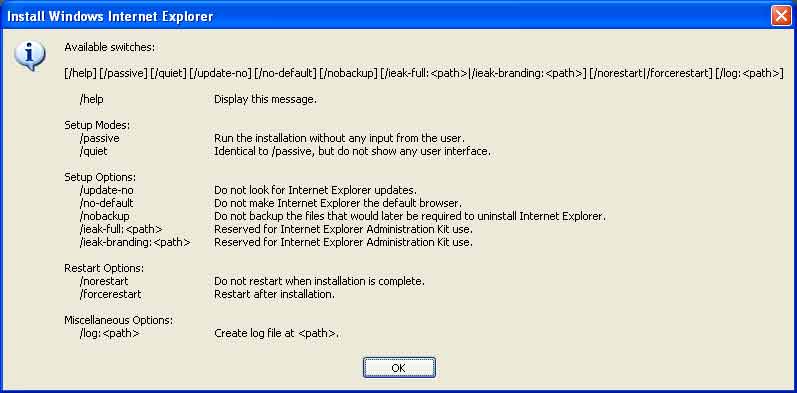
I successfully Intigrated SP3 to XP pro as well as some other apps, drivers, and did some slimming down. However I have run into an issue. Internet Explorer 7 wont slip stream. I downloaded IE7-WindowsXP-x86-enu.exe from Microsoft Download Center and attempt to intigrate it via the hotfixes submenu. However instead of getting anything useful I end up with the error screenshot below. For those that don't see the image its the Available Switches Gui Warning with only an ok or the red x as options. After that Nlite fails stating IE7-WindowsXP-x86-enu.exe Hotfix Integration failed. Please report if this is unexpected. Then it finalizes basically stating nothing changed IE no installation size changed. Any Ideas?