-
thanks for your help I will try it later
-
Thanks for you help Now I can preview winntbbu.dll But I got another problems The status bar is invisible and the countdown doesn' t work Is it normal ? Thanks for help
-
Thanks again I know that Resource Hacker can reshack the winntbbu.dll. But what I need is that I want to preview the winntbbu.dll is work or not after editing. If there any other software have similar function?
-
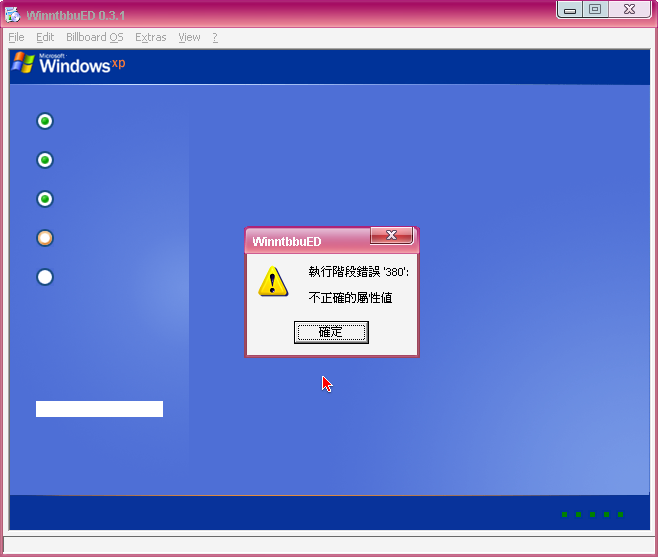
There is the screen of the error appear The background image is the default one
-
Thanks for your help I have download it 3 times and all appear "run-time error 380" The build number of the winntbbu.dll is 5.1.2600.5512 OS is Winxp pro sp3 zh-tw I am sure that the MD5Hash is the correct one. Is the OS language will affect the performance of WinntbbuED? sorry for my poor English.
-
When use WinntbbuED to open winntbbu.dll, WinntbbuED will appear "run-time error 380" and close by inself automatically. What should do in order to make WinntbbuEDwork for me?
-
I have ready installed Nlite. And follow the tutorials in th net. I see a lot of people can make WinXP to about 300 MB. But for me, it is about 450 MB.
-
I wanna to know how to use Nlite to clear obsolete files (Lang, Winupgrade, etc.) in zh-tw WinXP SP3? I want to remove all the language and keyboards expect JAPANESE, KOREAN, TRADITIONAL CHINESE and SIMPLIFIED CHINESE sorry for my bad English