Skip to content
View in the app

A better way to browse. Learn more.

MSFN

A full-screen app on your home screen with push notifications, badges and more.

To install this app on iOS and iPadOS
  1. Tap the Share icon in Safari
  2. Scroll the menu and tap Add to Home Screen.
  3. Tap Add in the top-right corner.
To install this app on Android
  1. Tap the 3-dot menu (⋮) in the top-right corner of the browser.
  2. Tap Add to Home screen or Install app.
  3. Confirm by tapping Install.

kirillkr

Member
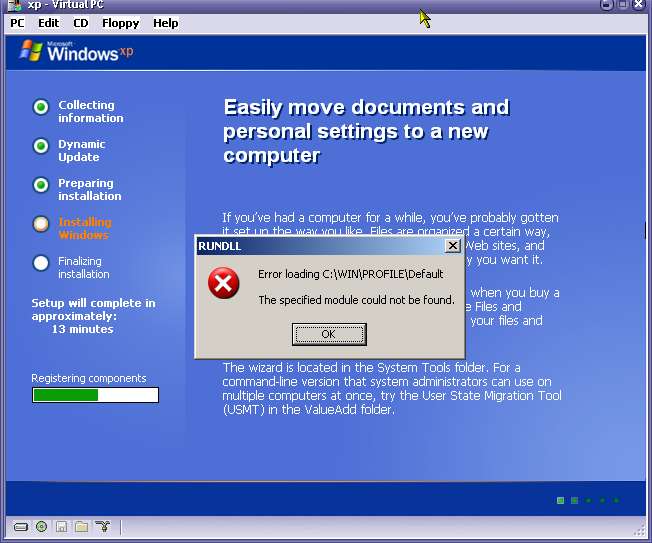
  1. How I can remove this folders and they not be created?
  2. Thanks russian forum http://forum.oszone.net/topic.cgi?forum=4&...=4630&start=100 for help. I don't see update KB817778 in svcpack.inf with double file in $OEM$\install\hotfix (this double install manual)
  3. What's I made wrong? [Unattended] UnattendMode=FullUnattended OemSkipEula=Yes OemPreinstall=Yes UnattendSwitch="yes" TargetPath=\WIN Repartition=No WaitForReboot="No" DriverSigningPolicy=Ignore OemPnPDriversPath="Drivers\intelinf;DRIVERS\nvidia;Drivers\network" ProgramFilesDir="%SYSTEMDRIVE%\APPS" CommonProgramFilesDir="%SYSTEMDRIVE%\APPS\COMMON" KeyboardLayout="United States" [GuiUnattended] AdminPassword=* EncryptedAdminPassword=NO OEMSkipRegional=1 TimeZone=125 OemSkipWelcome=1 ProfilesDir="%SYSTEMROOT%\PROFILES"

Account

Navigation

Search

Search

Configure browser push notifications

Chrome (Android)
  1. Tap the lock icon next to the address bar.
  2. Tap Permissions → Notifications.
  3. Adjust your preference.
Chrome (Desktop)
  1. Click the padlock icon in the address bar.
  2. Select Site settings.
  3. Find Notifications and adjust your preference.