Everything posted by ginkoman
-
If you absolutely must "cam" with your chicks, I suppose you could go with Skype as it has video stream support. Otherwise you could wait for MSN Video Stream support in Adium - it's on its way.
-
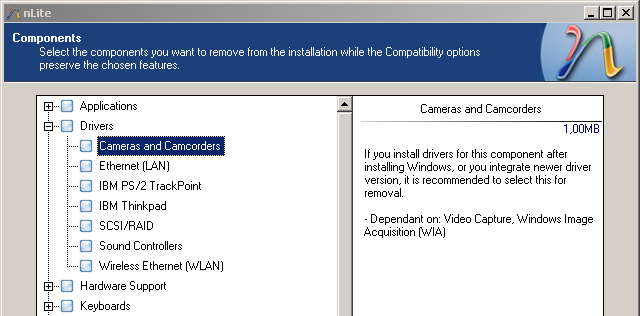
Just thought I'd add since I didn't found a mention for it... The driver component "Cameras and Camcorders" contains drivers to mount USB digicams as normal drives for many models of modern digicams, from among others Canon. Canon does not supply drivers for these cameras neither on the CD that comes with the camera nor on their support website - they rely -100%- on the driver included in this file that is shipped default with Win 2K/XP.
-
As topic says, I'm in need of knowing where the .cab/.dll/.whatever for the 1,00mb driver component "Cameras and Camcorders" is located on a Win XP Pro SP2 disc. I accidentily removed this driver thinking that all digicam manufacturers today supply drivers with their products; this was not the case. Canon does NOT supply the normal 2K/XP USB device mounting driver for several of their cameras, since it's "by default" present in the driver file I mentioned above, so I'm currently stuck with a Windows install which I can not connect my digicam directly to ;( Thankful for any info that helps me locate this driver file on my orig. disc