-
Thanks a lot spy !! It's working fine now ! We've just upgraded the version of the tftp server (the old one didn't support remap files). Then just added the line for the replacement of backslash and it's booting ... Thanks again !
-
Actually i thought about rewriting the TFTP request : \Boot\BCD to Boot\BCD as i'm not able to modify the bootmgr.exe , i think that keeping those slashes would cause errors. I'll do that on Monday. Thanks for your reply, i'll let you know the result of this. Have a good we. Damien
-
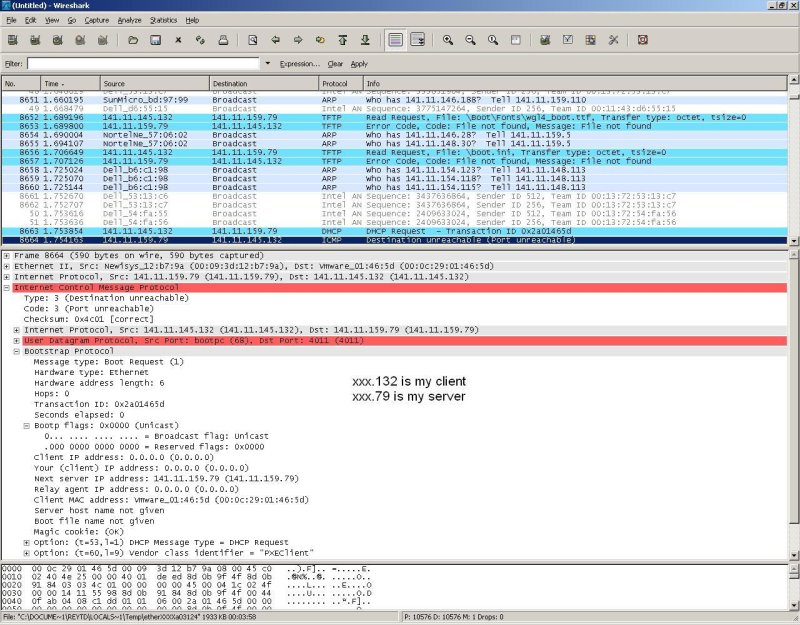
PXELinux is used on a linux server. The TFTP server always worked fine before, continue to work with other pxe systems (ie : powerquest) and it has just been updated to the latest version. I've been editing the BCD file myself , here it is : Windows Boot Manager -------------------- identifier {bootmgr} description Boot Manager displayorder {b04847ad-895d-11dc-a497-005056c00008} timeout 5 Windows Boot Loader ------------------- identifier {b04847ad-895d-11dc-a497-005056c00008} device ramdisk=[boot]\boot\boot.wim,{ramdiskoptions} description WinPE x86 osdevice ramdisk=[boot]\boot\boot.wim,{ramdiskoptions} systemroot \Windows detecthal Yes winpe Yes Setup Ramdisk Options --------------------- identifier {ramdiskoptions} description Ramdisk options ramdisksdidevice boot ramdisksdipath \boot\boot.sdi I've also tried the default BCD file given with WAIK ... the error is still the same ... I was thinking of a path problem, the thing is that i don't know if the pxelinux act like tftpd32 with the path. I had to tick something like "allow \ as virtual root". Maybe pxelinux does not support this. I was just looking at an ethereal trace of communication between the server and the client. I note that some files can't be accessed despite there're all present ... (see attachment) I'll try to remove the first backslash of \Boot\BCD that is hardcoded in the bootmgr.exe. If anyone has a procedure... Thanks for your help
-
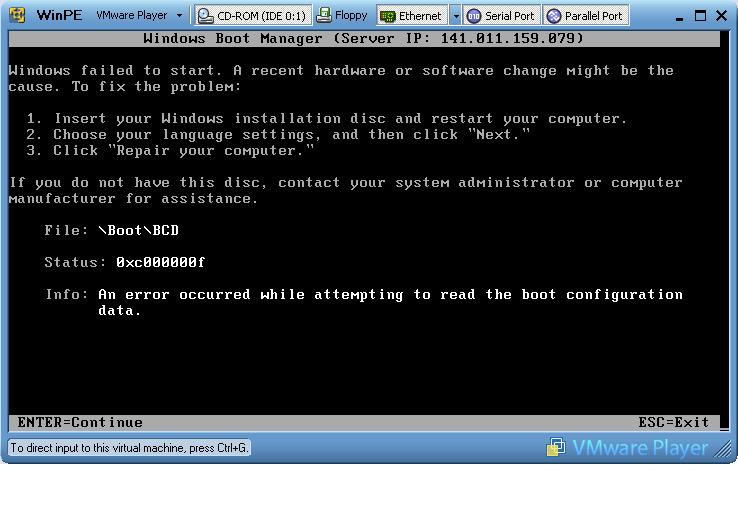
Hi all I'm tryning to boot winpe with a third party pxe server (pxelinux). when i'm booting, i only get the bootmgr telling there is an error with the file \boot\BCD : "An error occured while attempting to read the boot configuration data". The error code is : 0xc000000f I tried to boot on pxe the same files and folders with a windows tftpd32 server => success The Linux TFTP server reports no errors, the file seems to be well downloaded. Does anyone know how to solve this to boot under pxelinux ? Thanks Damien
-
Hmm startnet.cmd just contains wpeinit ... Wouldn't it be the same thing to launch directly wpeinit ? Anyway, if i do, how will i be able to start another command line ? I think i'll just get a dos prompt at the end ... Thx I just want to have wpeinit to be started and another script lauched. Dam
-
Hi all, I've been searching a response for a while, hope this post hasn't been solved already. I'm trying to launch another shell (like nu2menu) in WinPE. I've seen that it can be done in winpeshl.ini. But if i do, the script startnet.cmd is not launch so i can get no network connection. On the other side, if i enter startnet.cmd in the winpeshl.ini, it works fine with network but i have to launch the custom menu manually and the dos window have to be always opened. To sum up, i'd like to lauch a custom menu with network support (wpeinit.exe) but with no dos window. Thanks for your answers. regards, Dam