Everything posted by Perl
-
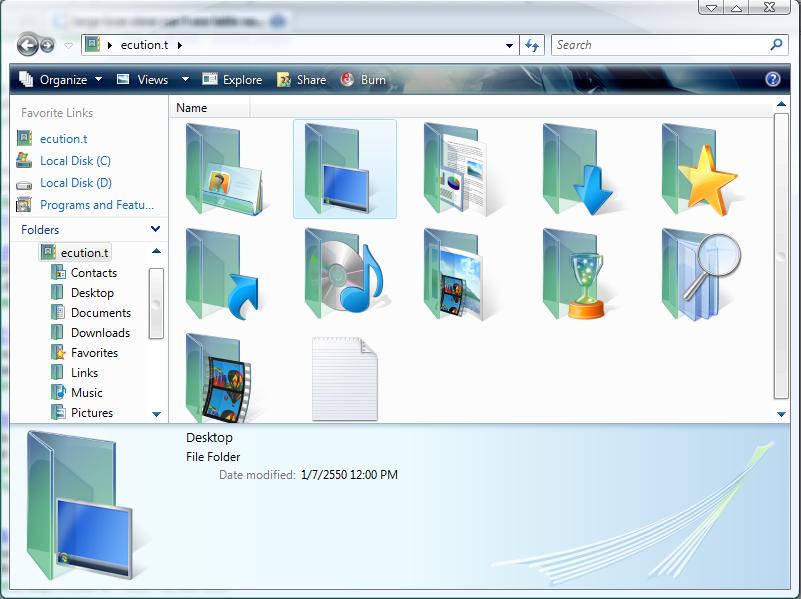
It's look like this when use large/extra large/medium/small view.[but in List/Details/Tiles view it's see lable normally ] Not user folder only ,Before I'm reinstall Vista 1 time I'll see it's be in my folder at another drive. Somebody can help me,What I do to get lable name it show up normally. or it's one vista bug ? Thank you for advance.
-
Why it like this ? wma codec should be include since wmp install ? It's can played wma music properly ,but why it's can't rip [any format from wma] anyone please tell me have some solution to fix this ,thank you [sory for my english]
-
thank you it's stay on but i'm have solution for fix this already i'm must to install vga driver before use power management (like forceware i'm use geforce 7200) it's will be work fine in the set time. if driver not install it, monitor can't turn off automatically and screen saver aren't not work... (-- --"! (i'm be know after the eneygy star feature not have in vista...)
-
I'm set the power plan setting to turn off display in 2 min and everting i'll be fine nothing problem but display are not turn off when it past 2 min please somebody have solution for fix this i'm use laptop and monitor turn off fine in winxp many thanks ps. sorry for my english